
Challenge
At Western Governors University, students beginning clinical rotations need a clear and reliable way to understand when and where they are expected to participate in coaching appointments and clinical shifts. At the same time, Placement Coordinators need visibility into students’ coaching schedules and confidence that students have received and viewed this information.x
The Opportunity
The existing experience created opportunities for missed information, scheduling confusion, and additional coordination between students and Placement Coordinators.
Project Details
My Role: Senior UX Designer
Platform: Web, Mobile Web
Team: Project Manager, Engineers, Education Stakeholders
Project Field: Field Experience Student Management
Outcomes
After release it was reported that 94% of students viewed their coaching appointment. We reduced missed/overlooked appointments by 25%.
Existing Calendar
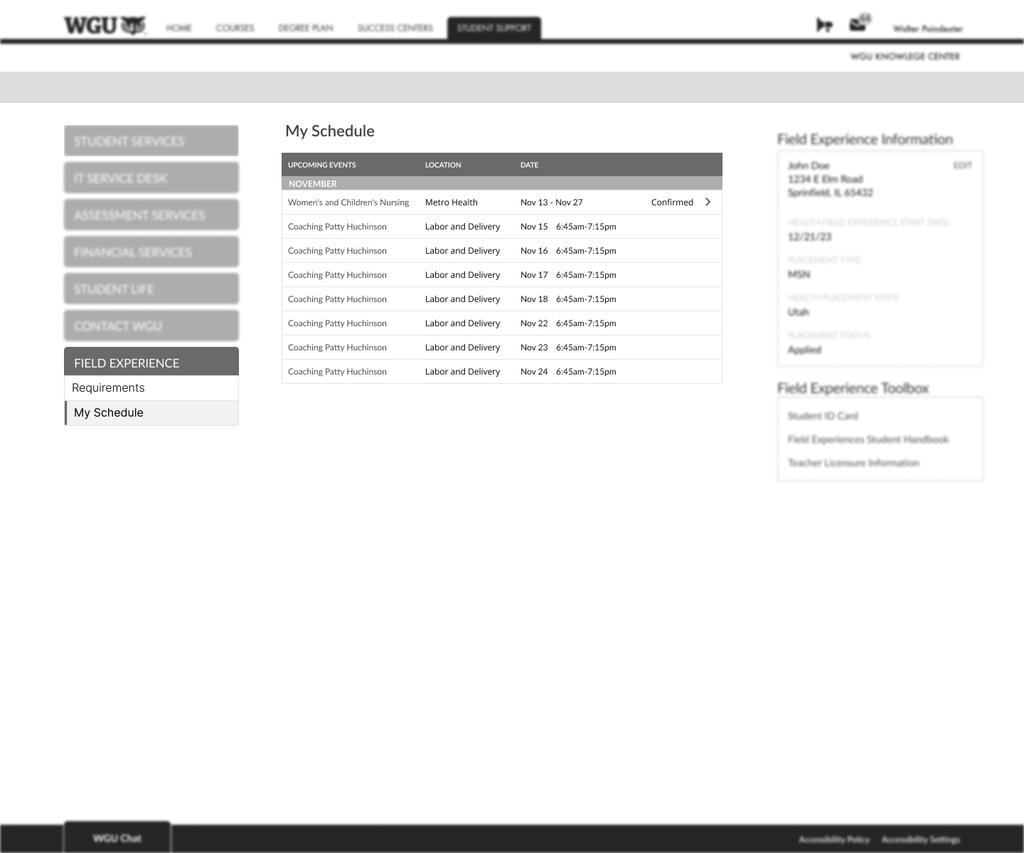
I began by evaluating the existing schedule experience to identify design and implementation constraints, while also exploring calendar patterns used elsewhere in the application to determine opportunities for a more consistent solution. Through working cross team with other designers, I was able to find a calendar plugin that better fit what we were trying to accomplish.
Wireframes
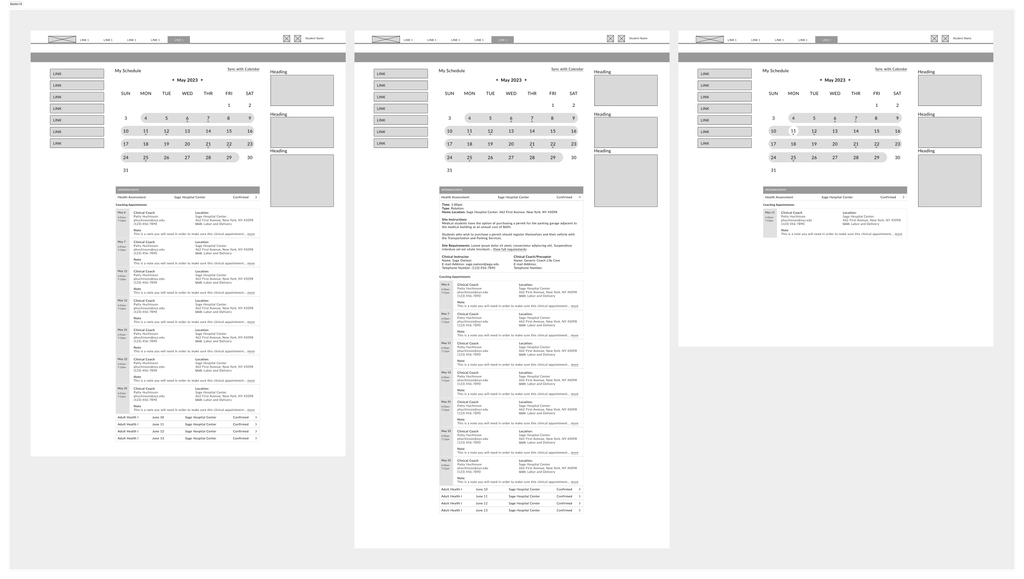
The new calendar plugin allowed us to move away from the existing list-based schedule and introduce a more visual calendar experience. At the top of the page, students can quickly see which weeks and days have scheduled events, while a high-level list below provides additional details. Users can also navigate to other months, making it easier to explore appointments beyond the initial view.
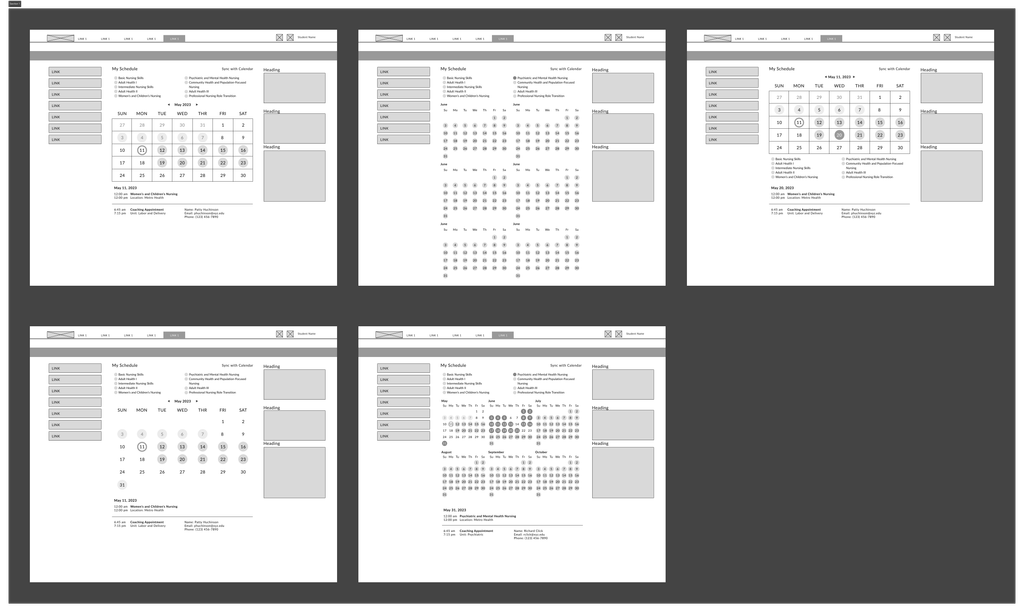
Below are some other iterations that I worked through in the early stages.
Design Hand Off
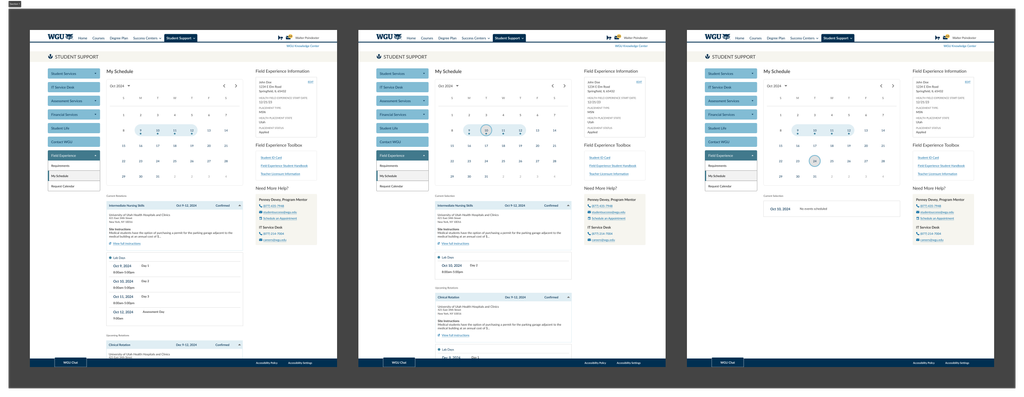
After reviewing the designs with stakeholders, the design team, and developers, we arrived at an experience that balanced the needs of both students and faculty. The first screen shows the calendar in its default state, allowing students to see all scheduled events at a glance. The primary event card provides the hospital location and important site instructions, followed by the dates and times for the student’s lab sessions. Upcoming clinical rotations are also displayed below.
The second screen demonstrates the drill-down experience. When a student selects a specific day on the calendar, such as the 10th, the view surfaces the lab scheduled for that day along with the relevant details. This allows students to quickly focus on a specific date without losing the context of their overall schedule.
The final screen illustrates the empty state when a student selects a day with no scheduled events, providing clear feedback that nothing is currently scheduled for that date.


